
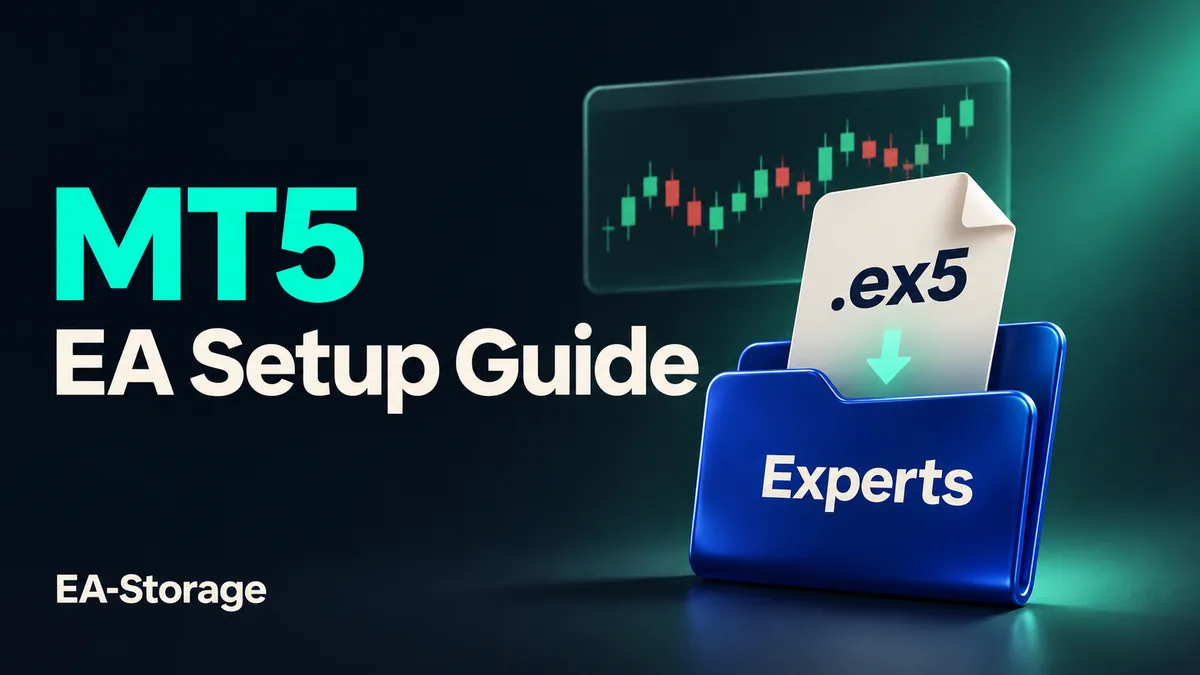
An Expert Advisor (EA) lets MetaTrader 5 place and manage trades according to rules you define. If this is your first EA, three questions tend to come up: where does the file go, how do you enable trading, and how can you tell whether the EA is working?
This guide walks through installation on MT5 for Windows, from choosing the right file to reading the trading logs. Try the setup in the Strategy Tester and on a demo account before using real funds.
What is an Expert Advisor in MT5?
An EA is a program that can open and close trades, set stop-loss and take-profit levels, and manage positions automatically. For example, you could program it to:
- Buy when a shorter moving average crosses above a longer one.
- Buy when the RSI falls below a chosen level.
- Trade a reversal when price touches a Bollinger Band.
- Add to a losing position each time price moves a specified number of pips against it.
- Close a position at a set time.
The EA can follow its rules without someone watching the chart. Profit is never guaranteed. Market conditions, spreads, execution quality, account size and input settings can all change the outcome.
EA file types in MT5
You will usually receive an executable or its source code. Some developers also supply a preset.
| File extension | What it contains | How to use it |
|---|---|---|
| .ex5 | Compiled MT5 program | Copy it to the EA folder. |
| .mq5 | MQL5 source code | Compile it in MetaEditor to create an EX5 file. |
| .set | Saved input settings | Load the preset from the EA’s Inputs tab. |
How to install an EA in MT5
- Download the EA.
- Open the terminal’s data folder.
- Copy the file to MQL5 → Experts.
- Refresh the Navigator.
- Attach the EA to a chart.
- Enable algorithmic trading.
Step 1. Prepare the EA file
Download the MT5 version and extract the archive if it comes as a ZIP. Check that the filename ends in .ex5 or .mq5. Files ending in .ex4 or .mq4 are for MT4.
EA-Storage offers free MT5 EAs to eligible community members. See the membership guide for the account and trading requirements.
Join the Discord community for free EAs, trading signals and the highest cashback rates
Step 2. Open the right data folder
In the MT5 terminal you intend to use, choose File → Open Data Folder. Windows File Explorer opens the folder for that terminal. This is especially useful if you have several MT5 installations, each with its own folder under AppData.
Step 3. Find the Experts folder
Open MQL5, then Experts. You can also create a subfolder for each EA inside Experts. For example:
MQL5/Experts/MyEA/MyEA.ex5Step 4. Copy the files
Copy the downloaded EX5 or MQ5 file into Experts or its subfolder. Some EAs come with additional files for Libraries, Include, Files or Indicators. Place those files where the developer specifies.
Step 5. Refresh the Navigator
In MT5, choose View → Navigator. Right-click Expert Advisors and select Refresh. Look for the EA by name. If you only have source code, compile it as described below. If a compiled EA still does not appear, restart MT5.
How to compile an MQ5 file in MetaEditor
- Save the MQ5 file in MQL5 → Experts.
- Open MetaEditor from MT5.
- Open the MQ5 file.
- Select Compile.
- Check that compilation finishes without errors and produces an EX5 file.
If compilation fails, read the errors in MetaEditor. Older code or code written for another platform may need changes before it will run in your MT5 installation.
Attach the EA to a chart
Step 1. Choose the symbol and timeframe
Open the chart for the instrument the EA is designed to trade, such as XAUUSD for gold or EURUSD for the euro against the US dollar. If the developer specifies a timeframe, switch to it (for example, M1, M5, M15 or H1).
Step 2. Add the EA
In Navigator → Expert Advisors, drag the EA onto the chart. Alternatively, activate the chart and double-click the EA to open its properties.
Step 3. Check the EA’s trading permission
In the EA’s properties, enable Allow Algo Trading. An EA attached to a chart cannot place orders if this permission is off. Some EAs also need DLL imports. Grant that permission only if you trust the developer and the EA requires it.
Enable Algo Trading in MT5
Turn on Algo Trading in the main toolbar. To find the platform-wide setting:
- Open Tools → Options.
- Select Expert Advisors.
- Check that algorithmic trading is allowed.
Both the terminal and the individual EA must allow trading. If the EA appears on the chart but never sends an order, check both settings.
Configure the EA’s inputs
Open the Inputs tab in the EA’s properties. Names vary by developer, but these are common examples.
| Input | What it controls |
|---|---|
| Lots / LotSize | Trade volume in lots per order |
| StopLoss / SL | Stop-loss distance |
| TakeProfit / TP | Take-profit distance |
| MagicNumber | Identifier used to recognize the EA’s orders |
| MaxPositions | Maximum number of open positions |
| MaxSpread | Largest spread allowed for entry |
| TrailingStop | How the trailing stop follows price |
| RiskPercent | Percentage of account funds used to size risk |
| TradingTime | Hours during which the EA may trade |
Pay particular attention to lot size. Larger trades magnify losses and drawdown as well as gains. If the developer provides recommended settings, start by testing those values against your own account size.
Load a SET preset
A .set file fills in saved inputs so you do not have to type them one by one.
- Attach the EA to a chart.
- Open Inputs in the EA’s properties.
- Click Load.
- Select the supplied .set file.
- Check the values that appear.
- Click OK to apply them.
Before you confirm, check that the preset’s lot size and risk settings suit your balance.
Check whether the EA is running
Look for the EA’s name and status icon near the upper-right corner of the chart. In the Toolbox at the bottom of MT5, open Experts for messages from the EA and Journal for platform and connection events.
If no order appears, look for errors first. An EA that has started correctly may simply be waiting for its entry signal.
Ten reasons an MT5 EA may not trade
1. Algo Trading is off
Check the button on the main toolbar. If algorithmic trading is disabled for the terminal, the EA cannot submit orders.
2. Trading is disabled for this EA
Open the properties of the EA on the chart and check its own trading permission, even if the toolbar button is already on.
3. The file is in the wrong folder
Check the active terminal’s MQL5 → Experts folder. An EA placed under Indicators or Scripts will not appear in the Expert Advisors list as expected.
4. The EA was built for MT4
Check the extension. MT5 uses EX5 and MQ5. Copying an EX4 or MQ4 file from MT4 into Experts will not make it run.
5. The broker uses a different symbol name
Compare the exact name on the chart with the name expected by the EA. Brokers may use EURUSDm, EURUSD.pro or XAUUSDc. An EA with a hard-coded symbol may not recognize a suffix.
6. The timeframe is wrong
An EA built for a specific timeframe may skip trades on other charts. Check the timeframe against the developer’s instructions.
7. The spread exceeds the limit
If the EA uses MaxSpread, it will skip new entries while the current spread is above that value.
8. The market is closed
Check the broker’s trading session for the exact symbol. Most forex and gold instruments close over the weekend. New trades must wait until the session reopens.
9. The account is disconnected
Check the connection indicator at the bottom right of MT5 and, during trading hours, see whether prices in Market Watch are updating. Verify the account and trade server if necessary.
10. There is no entry signal yet
Some EAs can wait hours, days or longer between trades. If the EA is active and Experts shows no errors, review its entry conditions before changing settings.
Backtest the EA before trading live
Use the Strategy Tester in MT5 to see which trades the EA would have taken on historical prices. Review:
- Net profit
- Profit factor (PF)
- Maximum drawdown
- Total number of trades
- Win rate
- Average winning trade and average losing trade
- Longest losing streak
Check how far the account fell during the test and how many trades the result is based on. A high net profit alone tells you little about either.
Start small on a live account
Live spreads, slippage, execution speed and server conditions can differ from a backtest. Test a new EA in stages:
- Backtest in the Strategy Tester.
- Forward-test on a demo account.
- If you go live, start with the smallest suitable lot size.
- Review results before adjusting volume.
Running an EA around the clock with a VPS
A locally installed EA runs while MT5 is open. Shutting down the PC or closing the terminal stops the EA. A virtual private server (VPS) can keep MT5 running even when your home computer is off. A stable connection matters especially for scalping EAs and other strategies that trade frequently.
Run several EAs at the same time
Open a separate chart for each EA. Monitor total trade volume and the account’s margin level across all of them. When two EAs trade the same symbol, check how each identifies the positions it should manage. Where supported, assign each EA a unique MagicNumber.
Stop an EA
To suspend automated orders across the terminal, turn off Algo Trading. To remove a single EA:
- Right-click the chart.
- Open Expert List.
- Select the EA on the relevant chart.
- Click Remove.
Stopping an EA does not automatically close existing positions. Check how you will manage those positions before switching it off.
Install EAs safely
Check who published the EA, especially if it requests DLL imports or access to an external URL.
- Download from a trusted source.
- Test before using a live account.
- Run a backtest and a demo forward test.
- Allow only the DLL access the EA actually needs.
- Check lot size and potential maximum loss.
- Read the logs regularly while the EA is running.
MT5 EA installation checklist
- Get the MT5 EX5 or MQ5 file.
- Choose File → Open Data Folder.
- Copy the EA to MQL5 → Experts and compile it if needed.
- Refresh Navigator.
- Open the correct symbol and timeframe.
- Drag the EA onto the chart.
- Set the inputs.
- Load the SET preset if supplied.
- Enable Algo Trading for the EA and terminal.
- Confirm the status in Experts and Journal.
Once you know where MT5 stores the file, installation is straightforward. Before trading live, test the symbol, timeframe and inputs on historical data and a demo account, and make sure the lot size fits your funds.
Find a free MT5 EA
EA-Storage publishes guides to free MT5 EAs, the platform and forex brokers. Each EA has its own rules, supported symbols and recommended settings. Compare its drawdown, trading logic and margin requirements alongside returns to see whether it suits your trading style.
Explore the free EA collection
Frequently asked questions
Can I use an MT4 EA in MT5?
MT4 uses MQ4 and EX4, while MT5 uses MQ5 and EX5. A developer may be able to port an EA if the source code is available. Renaming the file extension does not convert it.
I installed the EA. Why hasn’t it traded?
Check the terminal and EA trading permissions, symbol, timeframe, spread limit, trading session and account connection. If Experts shows no errors, the EA may still be waiting for a signal.
Do I have to leave my PC on all day?
If the EA runs on your PC, leave MT5 open and the PC running for as long as you want the EA to operate. A VPS is an option for continuous operation.
What lot size should I set?
It depends on the EA’s strategy, maximum drawdown, your account size and the loss you can tolerate. Review the developer’s suggested size and test with a small lot first.
Where should I put the SET file?
In the EA’s Inputs tab, click Load and browse to the file. If the developer specifies a preset folder for your setup, follow those instructions.
Comments